Gallium Cluster
Gallium Cluster is a high-availability hypervisor platform that distributes virtual machine workloads across multiple servers. Install it on your own server hardware, then manage everything (virtual machines, networking, storage, and failover) from the Gallium Console. If a server goes offline, workloads are automatically restarted on the remaining servers with no manual intervention.
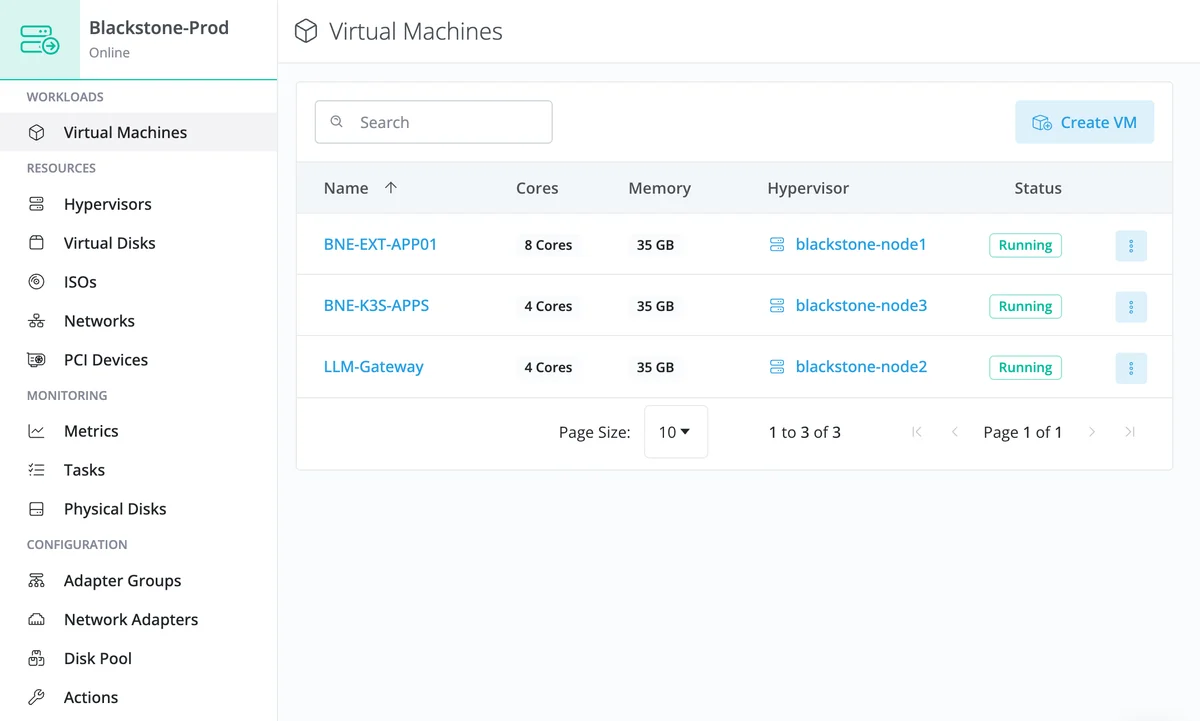
Feature Highlights
Automated Failover: If a server goes offline, virtual machines are automatically restarted on the remaining servers. The cluster maintains N+1 capacity so no workload is lost during a failure.
Live Migration: Move running virtual machines between servers with no downtime. Perform hardware maintenance, rebalance workloads, or upgrade servers without affecting your VMs.
Distributed Storage: Virtual disk copies are synchronized across servers so your data is always available on more than one machine. Storage redundancy is managed at the software level: no hardware RAID required.
Flexible Topologies: Start with the default three-hypervisor cluster. Enterprise Flex customers can deploy two-hypervisor clusters with a witness or scale up to nine hypervisors. See Topology.
Cloud Management: Monitor and manage your entire cluster from the Gallium Console. Access your servers from anywhere without VPN tunnels or direct network access.
Getting Started
Follow these steps to go from bare hardware to running virtual machines:
-
Plan Your Deployment: Choose a topology, select your hardware, and plan your storage and network configuration. See Planning.
-
Create the Cluster: Download the installer from the Gallium Console, boot your first server, and configure the cluster. See Creating the Cluster.
-
Add Hypervisors: Boot the remaining servers and add them to the cluster through the Gallium Console. See Adding Hypervisors.
-
Configure Storage and Networking: Create disk pools for VM storage and set up networks for VM connectivity. See Post-Installation.