Hardware Profiles
A hardware profile is a named preset of the low-level virtual hardware a virtual machine (VM) is given including its firmware and device types the guest operating system sees. The profile handles settings that require tuning to provide compatibility with different operating systems.
What a Profile Controls
A profile sets the hardware that must match the guest operating system:
- Firmware: UEFI or BIOS, and whether Secure Boot is on.
- Device types: which virtual disks, optical drives, and network adapters type are presented to the guest.
- CPU features: which processor capabilities are visible to the guest.
- Security devices: whether a virtual TPM is present.
- Enlightenments: hypervisor features a Windows guest uses to run efficiently.
A profile does not set the number of CPU cores, the memory allocation, disks, or networks. Those are configured per VM.
Families, Variants, and Versions
Profiles are named by family, variant, and version, for example: Gallium Windows (TPM) (v25.2).
- Family: the guest operating system the profile is tuned for.
- Variant: an alternative that changes one thing. (No Secure Boot) turns Secure Boot off for a Linux guest that cannot use it, and (TPM) adds a virtual TPM for a Windows guest that requires one.
- Version: a numbered revision of the settings. Numbered for the year and order v25.2 is the second release in 2025.
Gallium never edits a published version. When the recommended settings change, a new version is published alongside the existing ones, so a VM’s hardware stays as it was until you update it.
Aliases
Choosing an alias records the concrete version on the VM. If Gallium Windows (Latest) resolves to v25.2 today and v25.3 is published later, a VM created today stays on v25.2. Updating to the newer version is a change you make on the VM.
Profile Lifecycle
A version passes through three states:
- Current: the newest version of its family.
- Available: an older version that remains selectable. Use it when a guest depends on its settings.
- Obsolete: a version Gallium has retired because there is a reason to no longer use it.
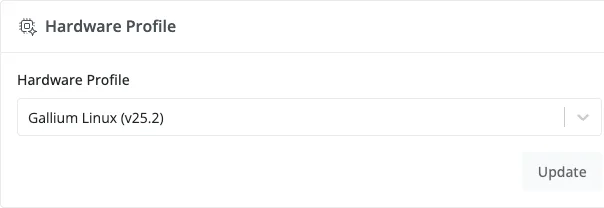
A VM on an obsolete version keeps running with the hardware it has. The Hardware Profile setting shows the version with an (Obsolete) label so you can see that a newer version is recommended.
Where Profiles Are Set
A profile is chosen in two places:
- Templates: every template names a hardware profile, and each VM built from the template starts with it.
- Virtual machines: change a VM’s profile from the Hardware tab of its detail page.
VMs created on Edge before hardware profiles were introduced show Legacy / Custom in place of a profile name. They keep their original hardware until you apply a profile.